Ch1: Setup guide
前置作業 (Common)
You need to do this no matter what
- 在
debug(除錯)模式下啟動 POI(Brave 也停止支援 Manifest V2 了,只能 88 KC3 了 QAQ) - 如有需要,請使用工作管理員強制結束所有 POI 相關程序。
為確保 POI 成功啟動,此debug模式必須是 POI 啟動的第一個程序。若已打開其他 POI 視窗,請先全部關閉後,再以啟用remote-debugging的方式重新啟動。 - 範例:
poi --remote-debugging-port=9222 --remote-allow-origins=*
(Windows 使用者:若不知道如何帶參數啟動 POI,請參考 這篇文章)
(目前必須加上--remote-allow-origins=*參數 (2023/05/04) 參考來源) -
如何確認
debug模式已成功開啟? 連線至
連線至 127.0.0.1:9222,應有下圖所示的空白畫面:
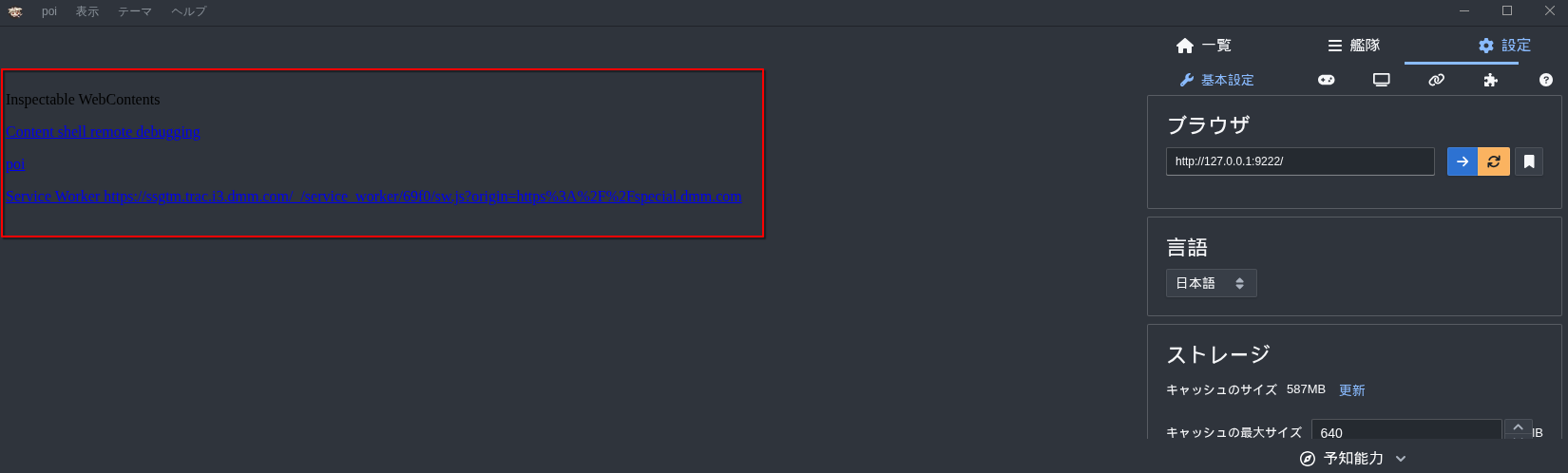
 若看到以下畫面,請關閉所有 POI 程序並重新嘗試:
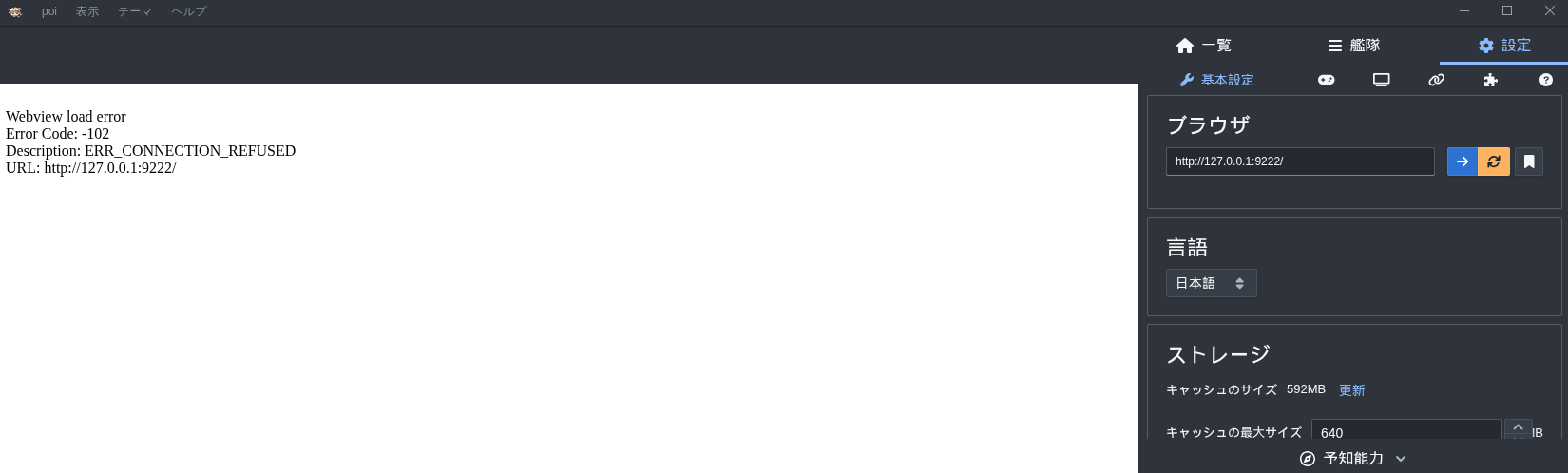
-
安裝
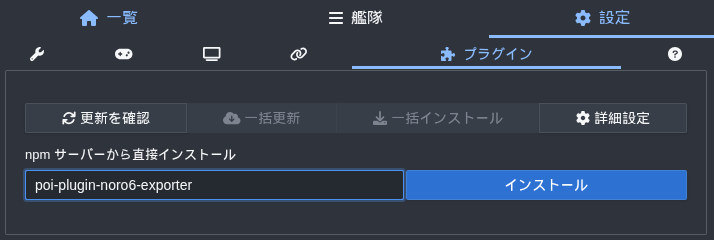
poi-plugin-noro6-exporter及poi-plugin-forwarder擴充外掛- 請注意,Noro6 Exporter 不會將配置匯出至原版的 Noro6 網站,
而是匯出到 XVs32 改版(Noro6 審 Pull Request 的速度實在太慢了,沒辦法,只能自己架一個,LOL)。
- 請注意,Noro6 Exporter 不會將配置匯出至原版的 Noro6 網站,


- Linux (Ubuntu) 使用者須知:
Ubuntu 的 Wayland 顯示協定對kcauto相容性不佳(對很多其他軟體也是,LOL)。
建議將 Ubuntu 切換回傳統的 X-windows 介面。
啟動說明 (Start Up)
請從 初學者 (Beginner)、玩家 (Gamer) 或 開發者 (Developer) 中選擇一種模式:
初學者 (Beginner)
功能受限,但安裝與後續設定流程最簡單。
- Windows
- 連點兩下執行
kcauto_cui.exe
- 連點兩下執行
- Linux
- 執行
./kcauto_cui
- 執行
以上!
玩家 (Gamer)
需要搭配制空權模擬器 (Noro6) 設置,但可使用完整功能。
- Windows
- 建議在 PowerShell 中執行
.\kcauto_cui.exe以獲得最佳使用體驗 - 或執行
.\bin/kcauto_custom\kcauto_custom.exe --cfg <你的設定檔名稱>來指定自訂設定檔
(注意:此處無需輸入副檔名.json)
- 建議在 PowerShell 中執行
- Linux
- 執行
./kcauto_cui - 或執行
./kcauto.bin --cfg <你的設定檔名稱>來指定自訂設定檔
(注意:此處無需輸入副檔名.json)
- 執行
專家 (Expert)
從設定檔直接調整各種細部設定。非新手向。
請時刻保持備份的好習慣。
如果你不知道自己在做什麼,回頭是岸。
詳細說明請參閱第 4 章。
開發人員 (Developer)
獨立的 Python 環境,自由修改與修復工具。
- 安裝 Python 3.13 與 pip
- 使用
pip install pipenv安裝pipenv - 建立
.venv虛擬環境,若忘記建立方式可參考 快速參考指南 - 使用
source .venv/bin/activate啟用虛擬環境 - 安裝依賴套件:
pip install -r requirements.txt-
若發現缺少函式庫,請查看
requirements.txt以獲取更詳細的說明 -
Windows
- 執行
python .\kcauto\kcauto_cui.py - 或執行
python kcauto --cfg <你的設定檔名稱>來指定自訂設定檔
(注意:此處無需輸入副檔名.json)
- 執行
- Linux
- 執行
python3 ./kcauto/kcauto_cui.py - 或執行
python3 kcauto --cfg <你的設定檔名稱>來指定自訂設定檔
(注意:此處無需輸入副檔名.json)
- 執行