Ch99.3: Noro6 equipment update script
A good plan today is better than a perfect plan tomorrow.
Appendix ‐‐ Noro6 equipment update
Since Noro6 doesn't get update after you upgrade an equipment,
after time you will get spam by the following warning:
This article provides the usage of an semi-auto script in kcauto_custom's tool box,
which is meant to saves you effort from updating Noro6's equipment data manually.
Overview
The idea of this script is to automatically click the update button for each config in noro6,
so that you're sync with the equipment you have in stock.
Equipment update function in Noro6
Preparation
Updating equipment data
First we need to grab the latest data from POI
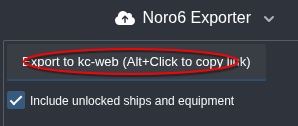
Exporting data from POI
Access control
Only tabs opened would be handle by this script,
in other words,
you could simply close a config if you don't wish to update it's equipment.
A closed config B-2-2-A
Auto save
You would want to turn on auto save in setting panel so that every file is saved after the script finished it's job.
Auto save option in Noro6
Update policy (optional)
Select Keep option for equipment replace policy,
this case it would be easier for kcauto_custom to tell if an equipment is missing.
Keep invalid equipment selected instead of leaving an empty slot
Running the script (browser's console)
Open F12 panel, head to console panel,
Console panel in browser
The script is locate in tool/noro6_equipment_update.js,
copy & paste the code into console panel, press Enter to run.
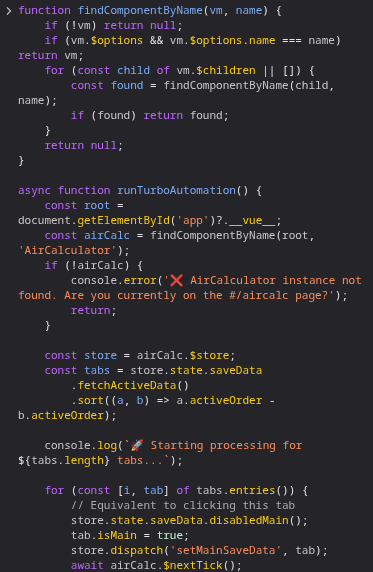
Script ready to run
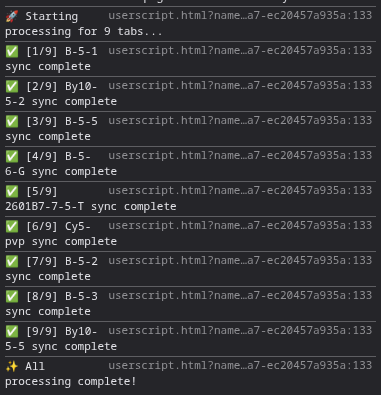
Equipment auto update
Running the script (Tampermonkey)
Alternatively, you can install a Tampermonkey script for convenient one-click execution without opening DevTools every time.
Install the Tampermonkey extension in your browser.
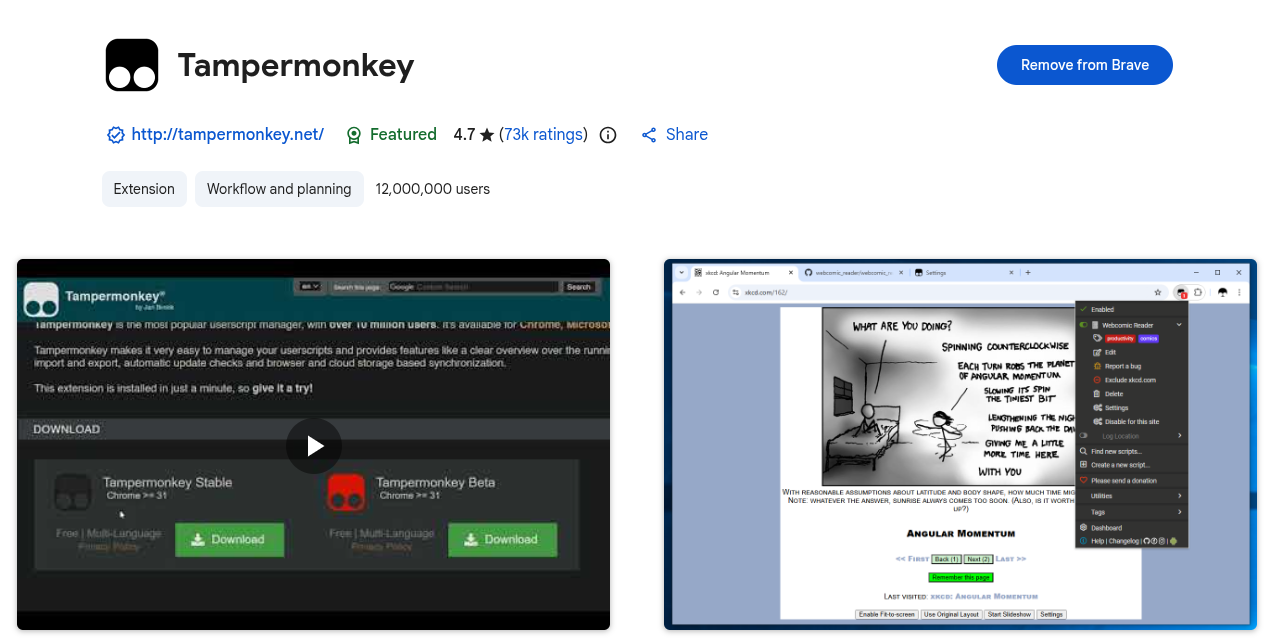
Open Tampermonkey dashboard, click Create a new script.
Then paste the Noro6 Turbo Sync userscript code.
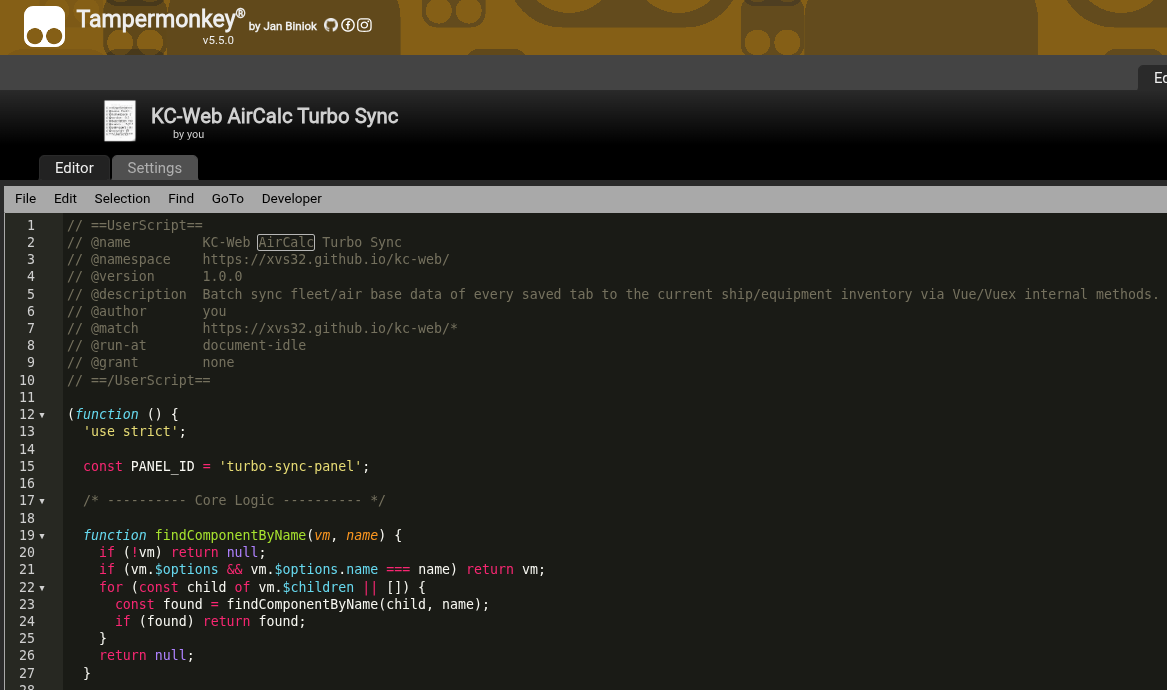
Save the script (Ctrl+S) and make sure it is enabled.
Navigate to Noro6(XVs32's edition) page: https://xvs32.github.io/kc-web/#/aircalc
A floating panel will automatically appear at the bottom-right corner.
Click ⚡ Turbo Sync All Tabs to start the batch update.
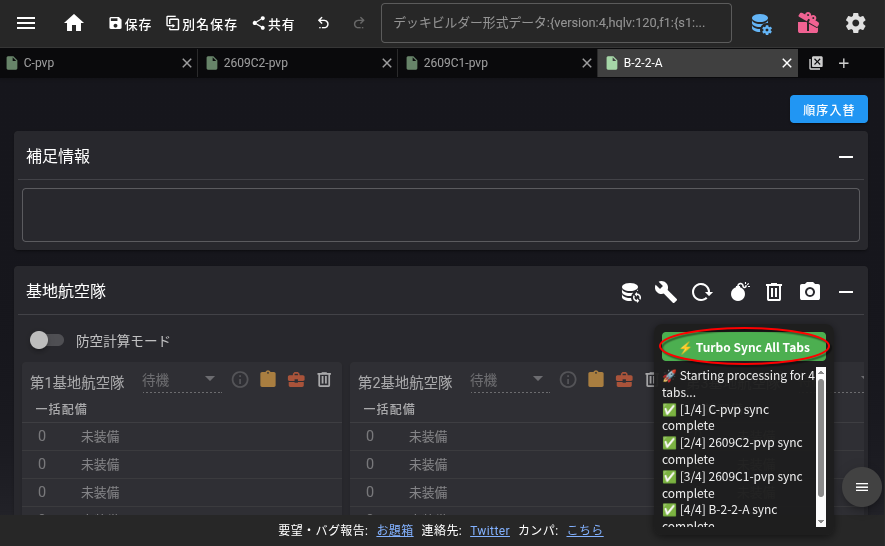
Floating panel injected by Tampermonkey script
We are done! Now you can export the config back to kcauto_custom's folder.